How to Rename Photos (File Names) on iPhone/Android | Smartphone Only, Done in 1 Minute
Published date:
2026-06-23
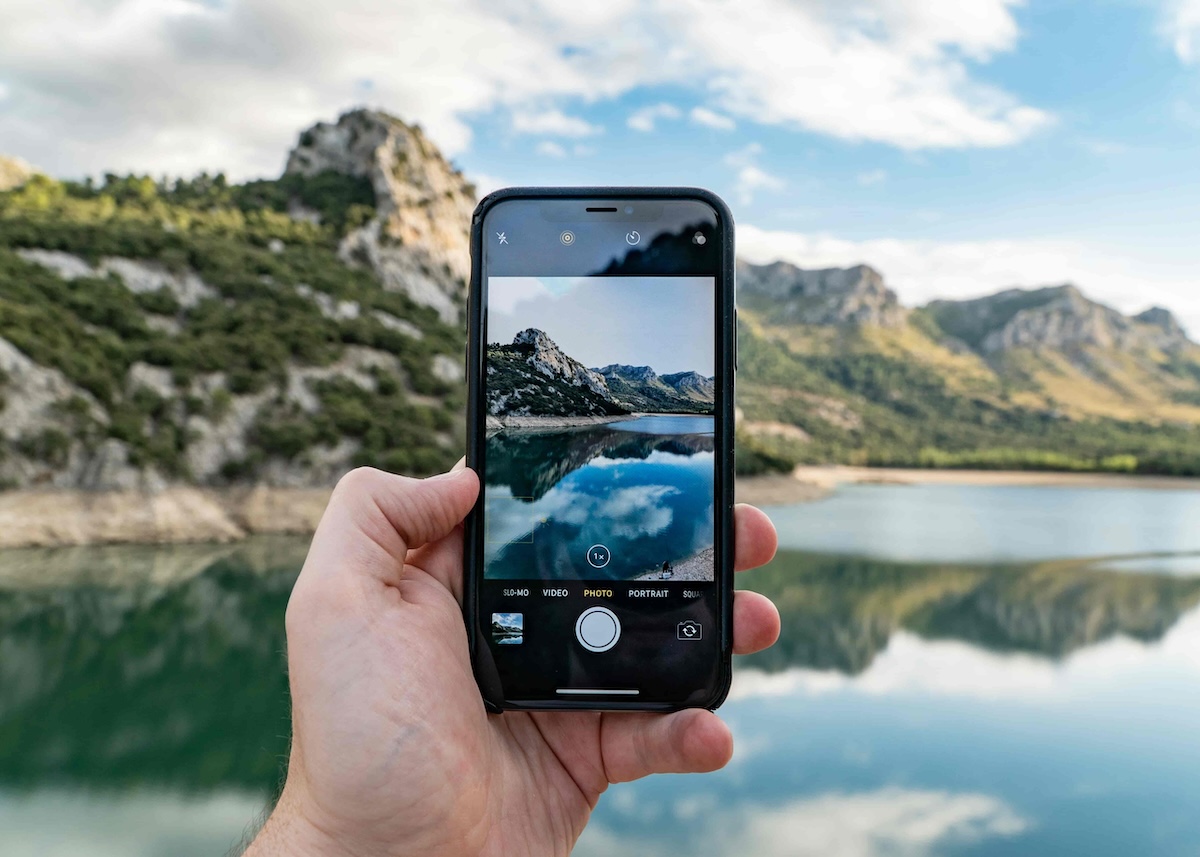
Have you ever had trouble when submitting photos for things like exhibition preparations or insurance/real estate procedures, because you were asked to specify the file name?
Photos taken with a smartphone are automatically given random names like "IMG_3498," but it seems many people don't know how to change file names on their phones.
But don't worry. If you know how, you can solve it in under a minute using just your smartphone.
This article carefully explains the file renaming procedures for both iPhone and Android.
Note: The information in this article is current as of June 2026.
The short answer is,it is possible to change photo file names using only your smartphone.However, the method differs slightly between iPhone and Android. Also, depending on the model, you may not be able to change it directly from the Photos app, so you might need to use a file management app.
iPhones come with the native "Files" app.
There are two ways to change photo file names: (1) saving it as a file first and then renaming it in the Files app, and (2) a time-saving method of using "Save As" when saving the file.
This is a two-step process: saving the photo to the Files app, then renaming it within the Files app.
First, you need to export it from the Photos app to "Files."
1. Open the "Photos" app and tap the photo you want to rename.
2. Tap the "Share button (icon with a square and an arrow)" at the bottom left of the screen.
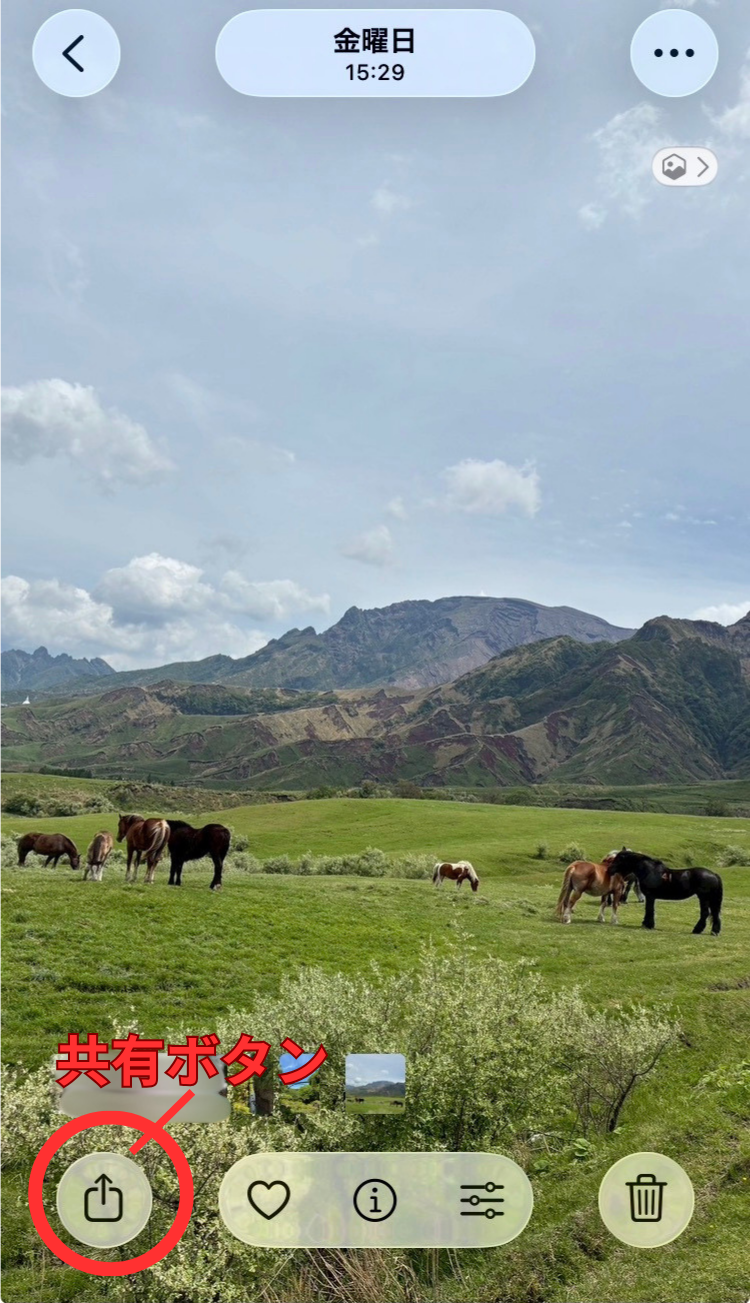
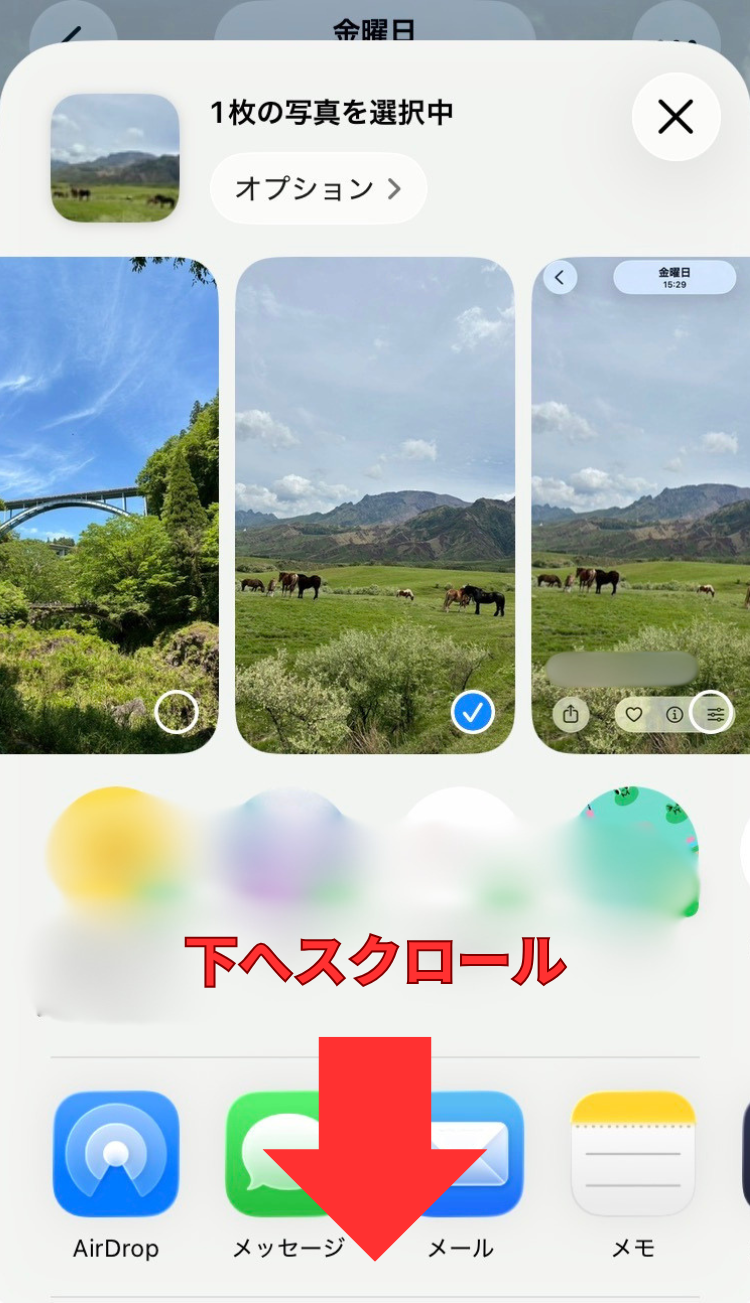
3. Select "Save to Files".
*Scroll down to find the "Save to Files" option.
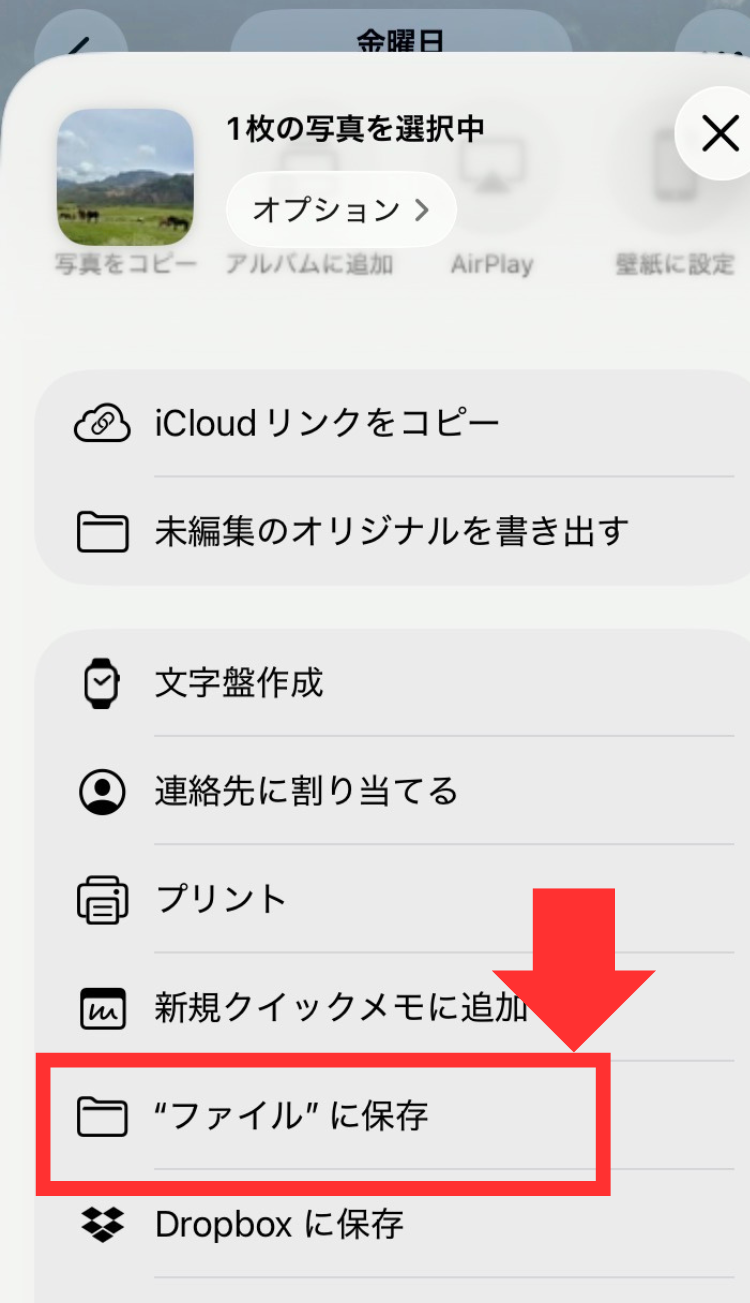
4. Choose a save location (e.g., "On My iPhone") and tap "Save".
.png)
1. Open the "Files" app.
2. The file you want to rename,long press.
3. From the menu, tap "Rename".
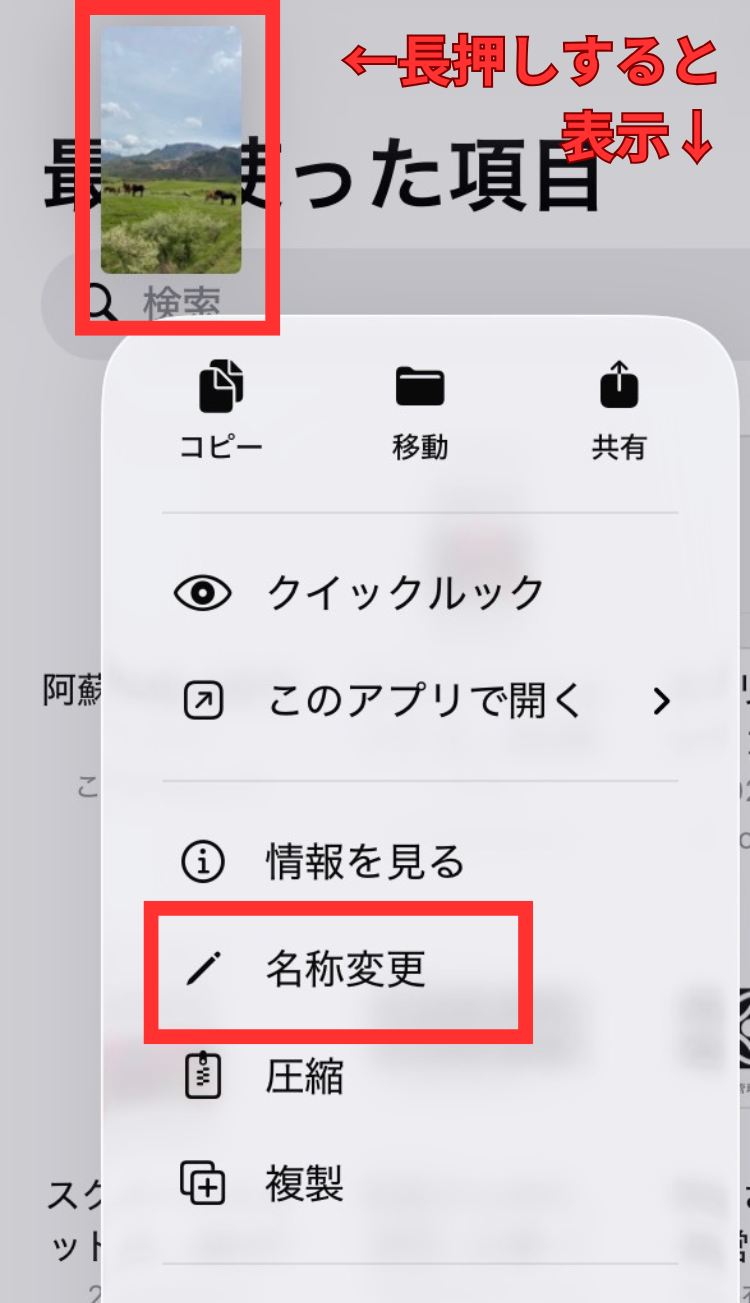
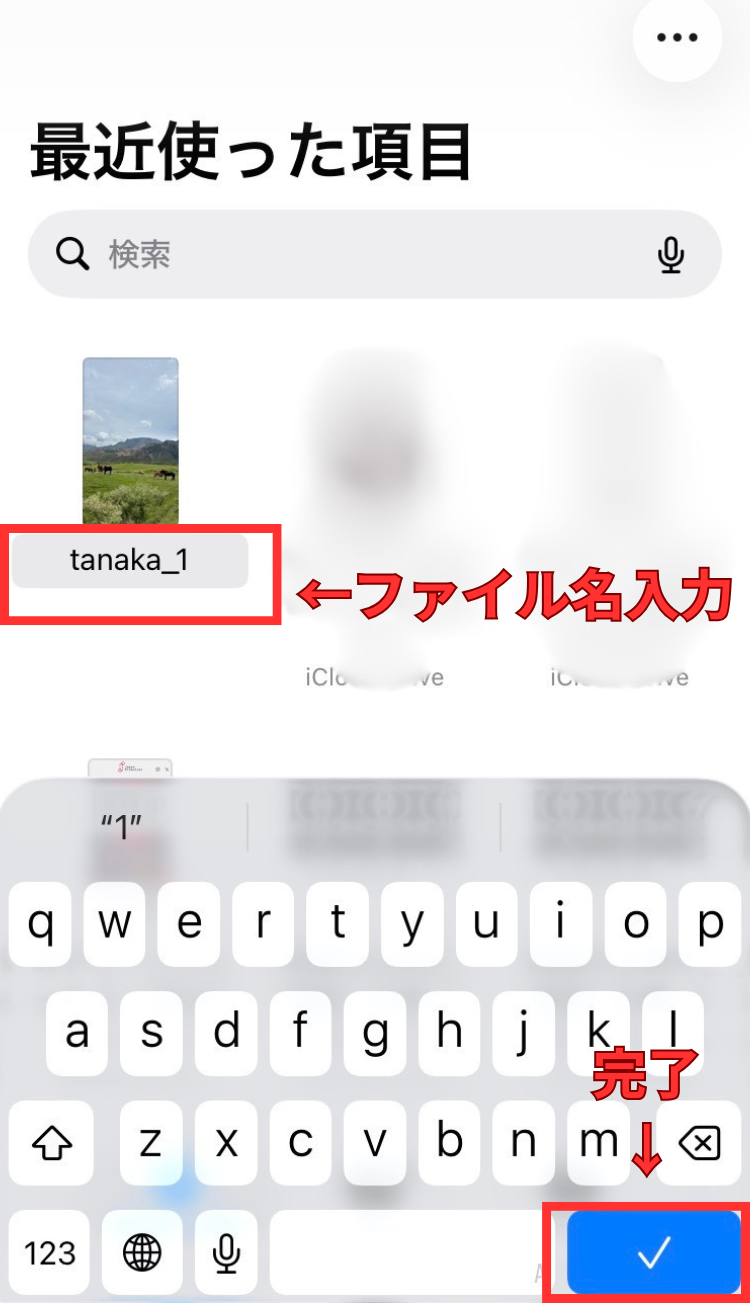
4. Enter the desired file name (e.g.,tanaka_1).
5. Tap "Done" or "Return" to confirm.
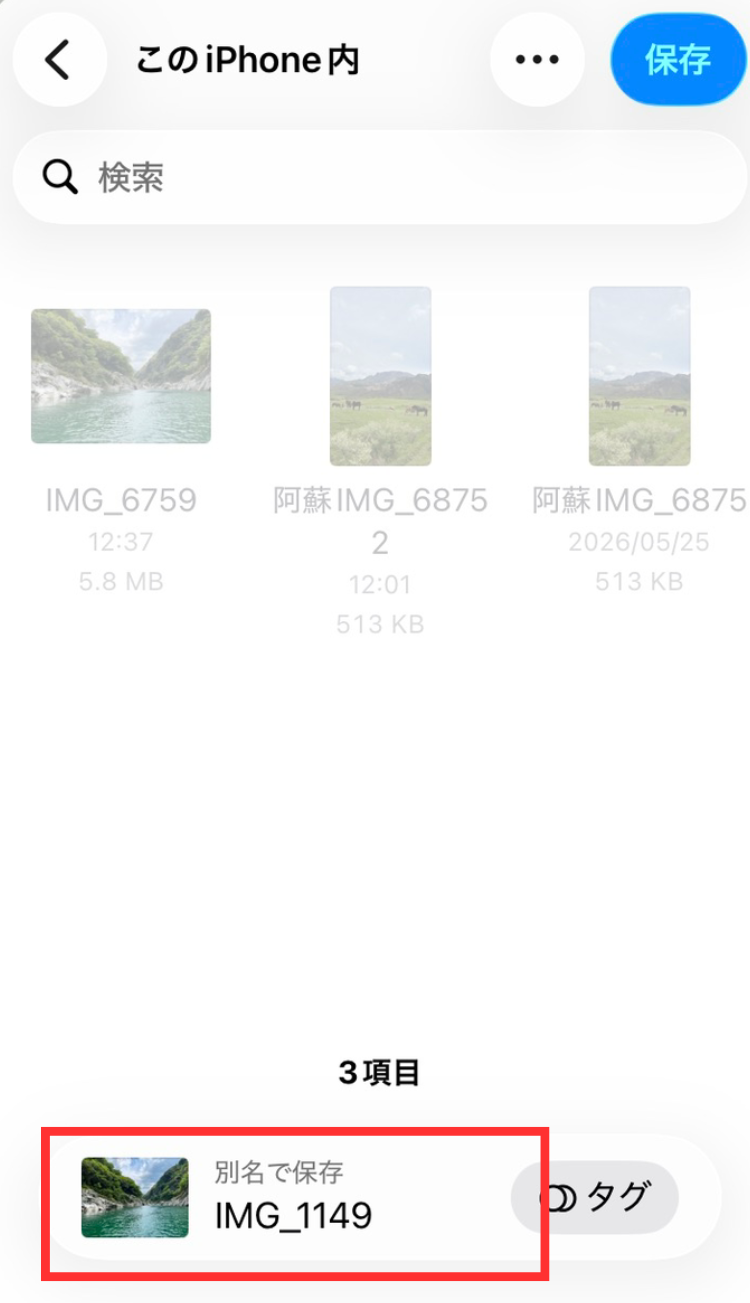
In step ①, immediately after tapping "Save to Files" from the Photos app, the option that appears at the bottom is"Save As". Tapping this allows you to change the file name directly. Once you've changed the file name and saved it, the photo will be saved to "Files".
Key Point
Keep the file extension (.jpg / .jpeg / .png, etc.) as is. Deleting the extension may prevent the file from opening. When renaming, it's fine to change only the file name (before the extension).
The operating procedure for Android varies depending on the manufacturer and model.
In most cases, you can rename photo files from either the "Gallery app" or the "Files app."
On some models, such as Galaxy, you can use this method to rename files.
After opening an image in a photo app like "Gallery," tap the three-dot menu (︙) in the upper right corner and select "Details" or "Info."
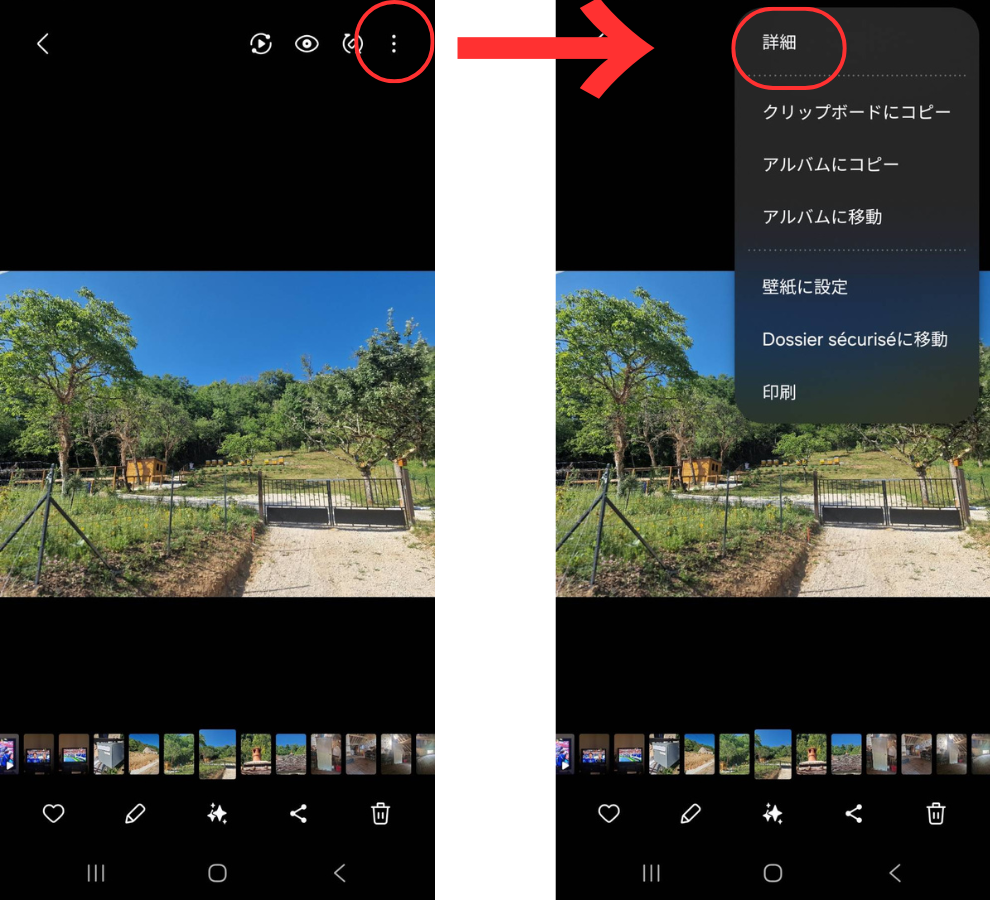
Depending on the model, you may be able to "edit" the file name from here.
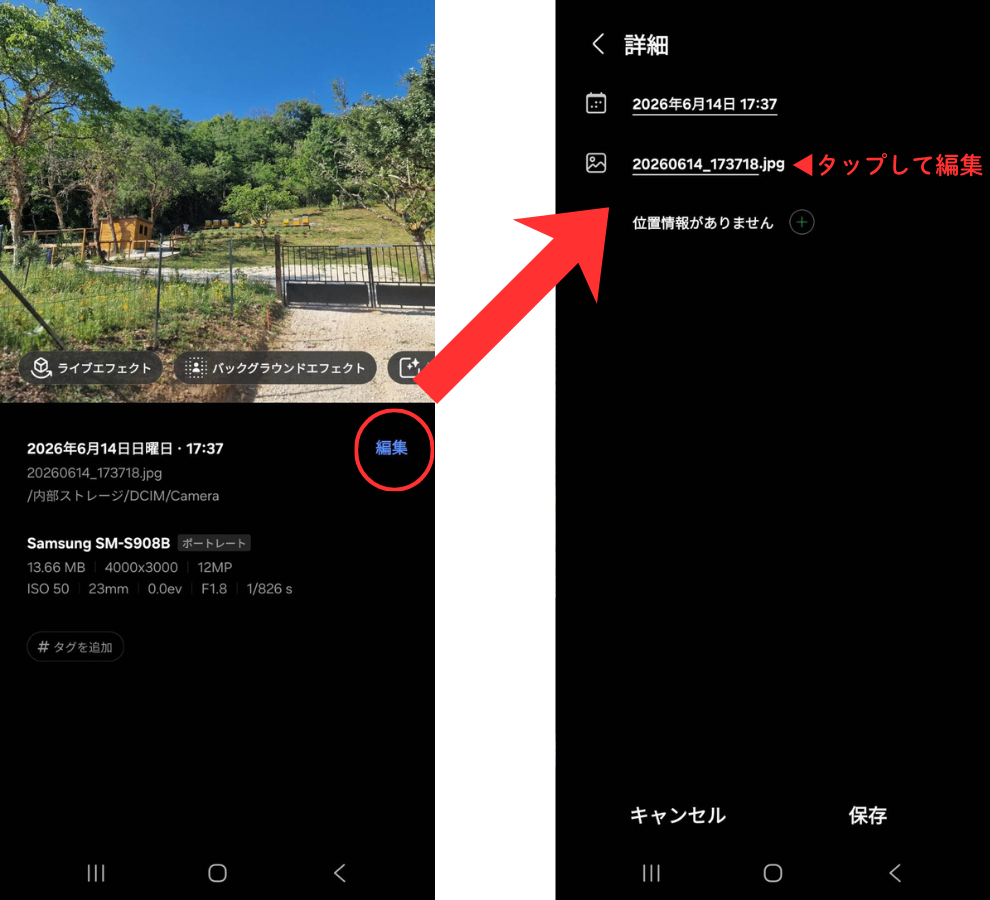
Here, we'll show you the steps to rename files using the Files app, along with actual Android screenshots (the model used is Xiaomi Redmi Note).
From your home screen or app list, open an app such as "Files," "My Files," or "Files," then navigate to the "Images" or "DCIM" folder to find the photo you wish to rename.
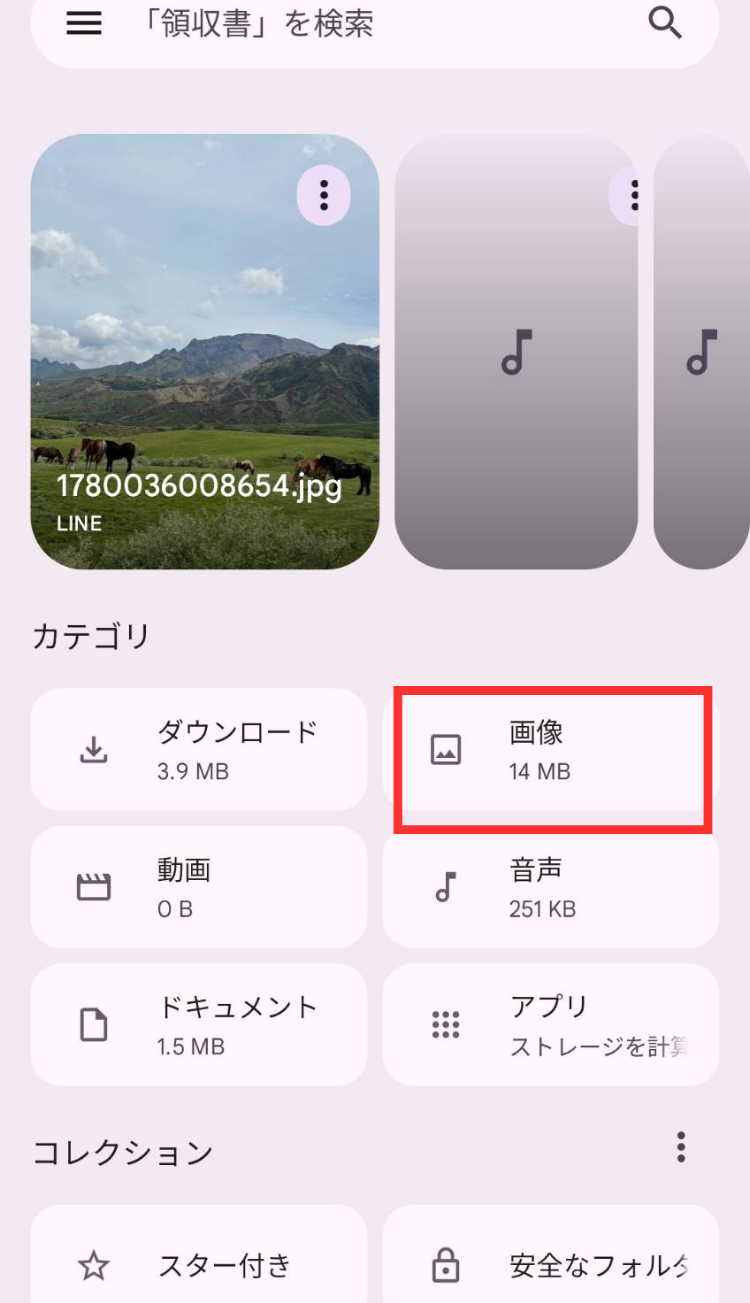
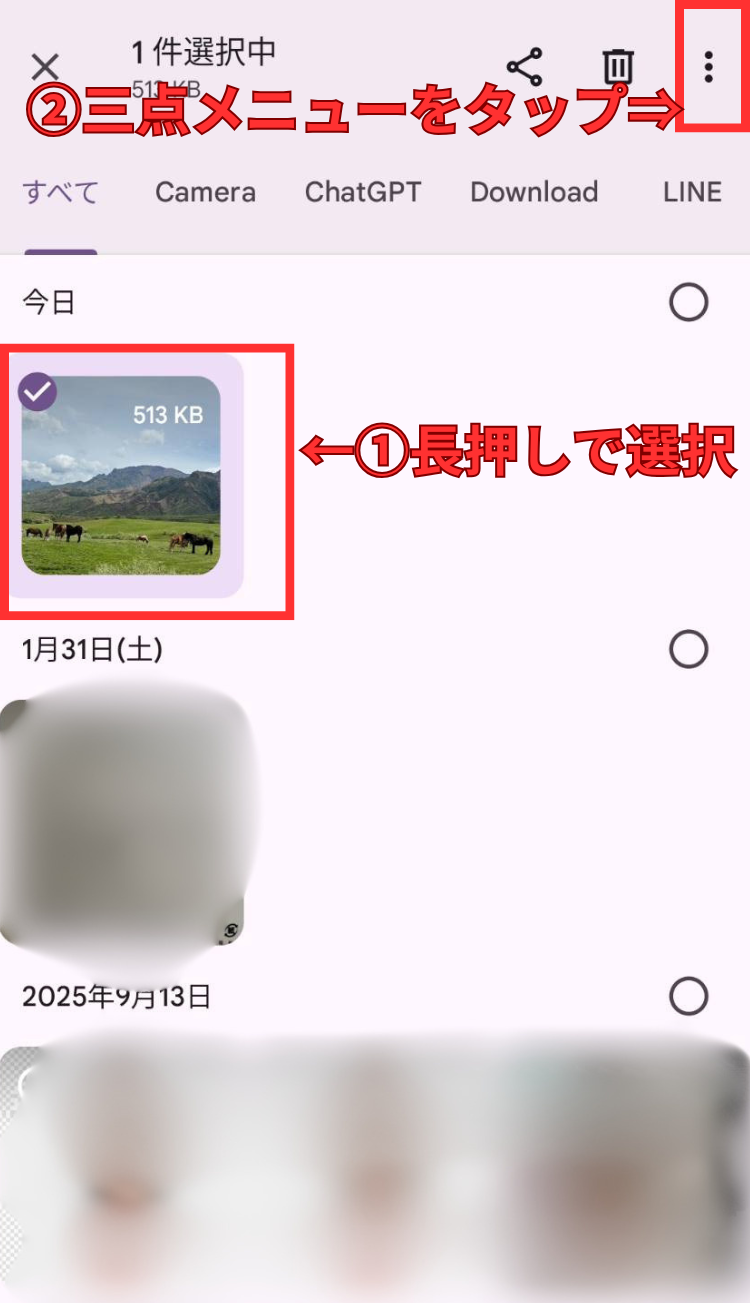
1. Long-press the target photo to select it.
2. Tap the three-dot menu (︙) at the top or upper right of the screen.
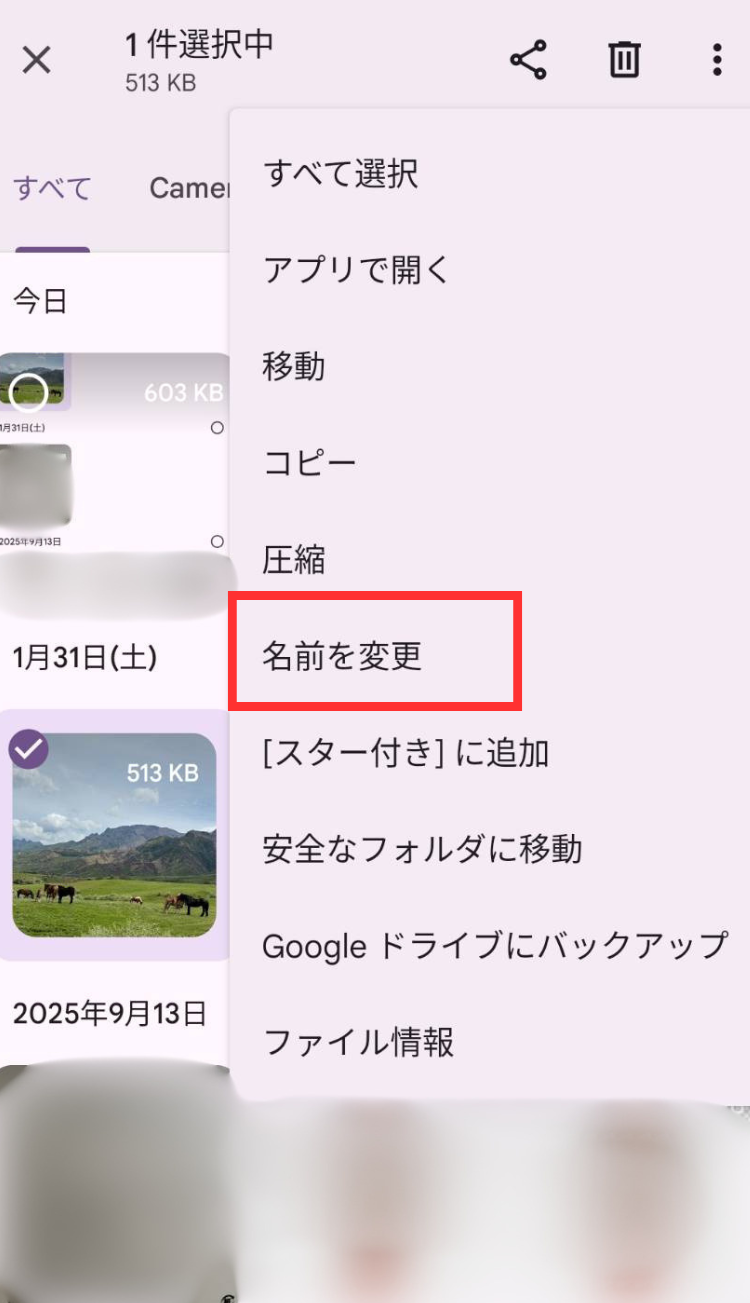
Select "Rename."
Enter the new file name and tap "OK."
Key Point
●Unlike iPhone, Android does not require exporting photos to a file.
●The app name varies by manufacturer, but you can rename files from file management apps such as "Files," "My Files," or "Files."
<If you don't have Files by Google>
You can install "Files by Google" for free from the Google Play Store. It's simple, easy to use, and renaming files is intuitive, so it's highly recommended.
Yes, the following symbols often cannot be used in file names: \ / : * ? " < > | It's safest to avoid these and use alphanumeric characters, underscores (_), and hyphens (-).
Renaming a file does not affect the photo's data (quality or content) at all. However, be careful not to change or delete the file extension (e.g., .jpg), as this may prevent you from opening the file.
Unfortunately, standard smartphone apps generally only allow renaming one photo at a time. If you want to rename multiple files in bulk, it's more efficient to transfer them to a PC first.
Even if you thought it couldn't be done without a PC, please give it a try. Once you get the hang of it, you'll be able to do it in less than a minute.
If you have any difficulties preparing your photos for your exhibition, please feel free to contact us anytime!
Related Articles:How to Photograph Analog Illustrations and Paintings | A Basic Guide to Taking and Editing Beautiful Photos with Your Smartphone